

Now is a great time to sit down with your spouse and make up a budget. I know a lot of you think of the word “budget” as being limiting or terrible or just a plain nuisance, but that’s simply not true. A budget is a tool–just like couponing or menu-planning–that can lead to big savings for you and your family. And now, Faithful Provisions is excited to show you how to budget using this FREE printable Budget Worksheet with step-by-step instructions for filling it out. Easy and user-friendly, this How to Budget worksheet is ready to download and then be personalized by you.
:: Download the FREE Printable How to Budget Worksheet HERE.
Tips for How to Budget
Review your budget at the end of every month. This is the best time to look at the past month, and review your goals for the upcoming month.
Look at your calendar. What is going on during the month ahead? Are there any special items you need to budget for? Things like:
- A child’s birthday party
- A family member’s birthday gift
- Date night: your plans for an evening out plus money for a baby sitter
- A special offering at church
You can look at past months or even last year’s calendar to get an idea of the different expenses you may have coming up.
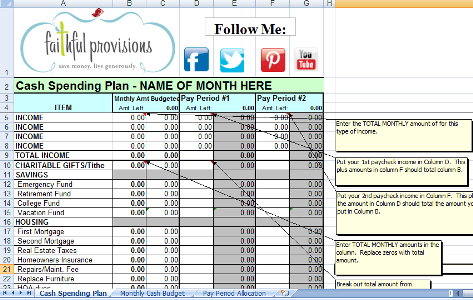
How to use the “How to Budget” Worksheet
Using this budget couldn’t be easier.
- Download the FREE Printable Faithful Provisions How to Budget Worksheet.
- Follow the pop-up instructions as you fill in your income and expenses. (Instructions will pop up as you hover over the cells.) You’ll find that everything is mapped out for you and easy to navigate.
- Ask any questions by commenting on this post.
If you have questions, please ask! I am striving to be here to help you and answer those important questions as you create a budget and set your own goals for sticking to it this year.
You might like these articles:
- How to Budget and Save Money
- 10-Part Budgeting Series
- How to Set a Grocery Budget
- How Much Should Your Family Spend on Groceries?
Plus, find more FREE Tools for Budgeting and Planning HERE.




How can I open this on a mac? Is it only PC friendly? Thanks!
Oh goodness, I don’t have a Mac and didn’t even think of that. I’ll get to work on it. Anyone else have a Mac and able to download it?
I was actually just about to ask the same question as Chellsey. I was able to get it on my screen, but couldn’t do anything with it. I look forward to a Mac version???
I have a Mac and it does work. When your Mac confirms where you want to save it, there is a drop box below that will give you the option of saving as an .xls file or as ‘any file’. Choose ‘any file’ and it will automatically open it up in the Numbers program.
Thanks for the download! Will be working on it tonight. 🙂
My mac does not give me that option. It just asks if I want to allow “text edit” to open or “other”. When I click other numbers is not an option? I am new to MAC and it can be rather frustrating sometimes for me 🙂 Thanks for any help I can get.
CHellsey – I don’t have a Mac, but check out Tracy’s or Rebecca’s comments for a way to use the doc in a MAC. Hope that helps!
Mine doesn’t give me the option Tracy spoke of either, at least not that I saw. I’m not even sure I have a “Numbers” program.
Me either Brenda 🙂
Mine worked on my Numbers program on my Mac. Great budgeting tool! I’ve tried over and over to make my own spreadsheet like this but I usually fail miserably. I was able to put together our budget in about 45 minutes tonight using this download and looking back at our past 3 months expenses. Thank you!
Rebecca – I am so glad it was helpful! Thanks for letting me know. 🙂
Sorry that it’s not working ladies. I have a Mac OS X 10.6.8 and it came with iWork which has the Numbers program in it along with Pages and Keynote. They are all part of iWork.
Not sure if this will work for you but you may be able to hold the mouse over the .xls download and then hold down ctrl and click on the download. This would be the same as right clicking on a PC. You should see an option to ‘Open With’. Then you should (hopefully) see ‘Numbers’ as an option.
I hope this works for you. 🙂
I don’t have the entire Work suite, I just have Pages. Looks like we need to get Numbers. Hmm, not sure that’s in the budget. 🙂
Silly question but once I enter all my data will the “help” boxes go away or will they be there each time? Or is this designed to strictly print out as a guide?
Thank you for your hard work in creating such a useful tool!
you can right click on each grid that has a comment and “delete comment”
Just FYI for all you other Mac users… I downloaded a free program called Open Office. http://www.openoffice.org/ Opens this worksheet just beautifully. Thanks Kelly for the worksheet! I’ve been looking for an easy way to create a budget, and this worksheet is perfect!
You are so welcome! Thank so much for the help for Mac users. 🙂
What a great tool! Thank you so much for sharing! This is everything I’ve been looking for in a budget worksheet. I do have a question: On the “Monthly Cash Budget” tab, I’m a little confused about the “Take Home” column. The cell just says “0.1” and then cell G2 has a comment that says that number should equal the take home amount. Both columns F & G just have large percentage numbers running down. I hope this makes sense. I’m wondering if you could help clear that up? I’m probably doing something wrong, I just know it. It probably doesn’t help that I don’t have a clue what “take home” is anyways. 🙂
Jessica – for the “Take Home” cell that you’re referring to, you will type in the actual amount of money you take home (how much your pay check is). Then, as you budget out your items in the “Sub-total” column, you will see that they add up. The total amount you “budget” should equal the amount of money you take home (in your paycheck). The goal is to have those 2 numbers equal each other – then you have a “balanced budget”. 🙂
Hope that helps clear up your questions. Please let me know if there are any other questions.
Perfect!! Thank you for taking the time to answer my question. That clears it up perfectly. 🙂
I have been working with your Budget Worksheet this afternoon. I don’t understand the tabs “Monthly Cash Budget” and “Pay Period Allocation”. How do I use those? When I enter data into the “Cash Spending Plan” should it cross over to the other tabs? Do you have a tutorial for these extra tabs? Thank you!
Marcie – Here are a few things to help you: I”ll work on a tutorial for the other two, but in the mean time.
Cash Spending Plan – no, the data will not cross over to the other tabs. You have to add it manually.
Monthly Cash Budget – this is the first column of the Cash Spending Plan tab, you dont’ need it unless you like to see the data differently (if you are a numbers nerd!) he he
Pay Period Allocation – In this spreadsheet, you just insert your pay period income/take home pay, and as you deduct the other items, the total will change in the “Amt Left” columns. This gives you a visual of exactly where your money is being spent each pay period. It is the same field as in the Cash Spending plan tab. Just shows you last two sets of columns on a separate tab.
I found a couple of times in the cash spending plan where it didn’t do the math properly and I had to subtract some categories manually . Then it seemed to reset and be okay from then on out. I noticed it in the repairs and tires row – and again down further too. Not sure if this is a gliche or something I wasn’t doing right but….?
Also, I’d like more of an explanation of the last two sheets of this budget as well. I’m not sure how to use them. What goes in the subtotal of the first column? And when I say what I automatically spent, does it automatically then tell me somewhere how much I have left to spend in that category? Help! 😀 Thanks so much.
Column D & E have a few errors in the equations that make the Amount Left in columns D & G wrong.
I would suggest that before you use this spreadsheet take a look at all of the equations and make sure the everything totals correctly.
If you don’t have Excel you can also import the spreadsheet into Google docs it converts seamlessly and you can access it where ever you go.
Thanks for the great spreadsheet.
I realized this too, after I had already completed everything. Oh well. I love the spreadsheet and just need to fix that mistake. Thank you!
Ok so I’ve figured out that the pay period allocation is where I”m logging what I spend and it’ll go down. However, still wondering if there is any place that will keep a running log of how much I’ve spent in each category from month to month so that if I overspend in food one month, it’ll show a negative start the next month – reminding me to spend less that month to get it balanced again??
Keeping expenses under control is very important. And to do that it is mandatory to maintain a monthly budget. I am doing this for a few years already and I say that it pays off. I started first with an excel sheet, later I realize there are free online tools which helps you to do that.
Thank you for the spreadsheet! I have one question–my husband gets paid weekly. Is there a way to add two more pay periods without messing up the totals? 🙂
Crystal, i’ll have to check into it!
I am wondering the same thing. My husband is paid weekly as well. =0)
How much time did it require you to compose “How to Budget | Free Printable Budget Worksheet |
Dave Ramsey — Faithful Provisions”? It comes with plenty of wonderful advice.
Thx -Tamika